Accounts, activation and school setup
Getting started with Spellito
Basic ten-word spelling practice is free: no child name, account or payment is needed. When you want family profiles, a Family Pass or a teacher space, a grown-up completes the account steps. Children do not need their own email address or password.
By Wacky Works Digital · Last updated
Installing the web app only adds a convenient way to open Spellito; it does not create an account or activate paid access. Follow the Spellito installation instructions separately, or start free ten-word practice in your browser now.
How do I set up a family account?
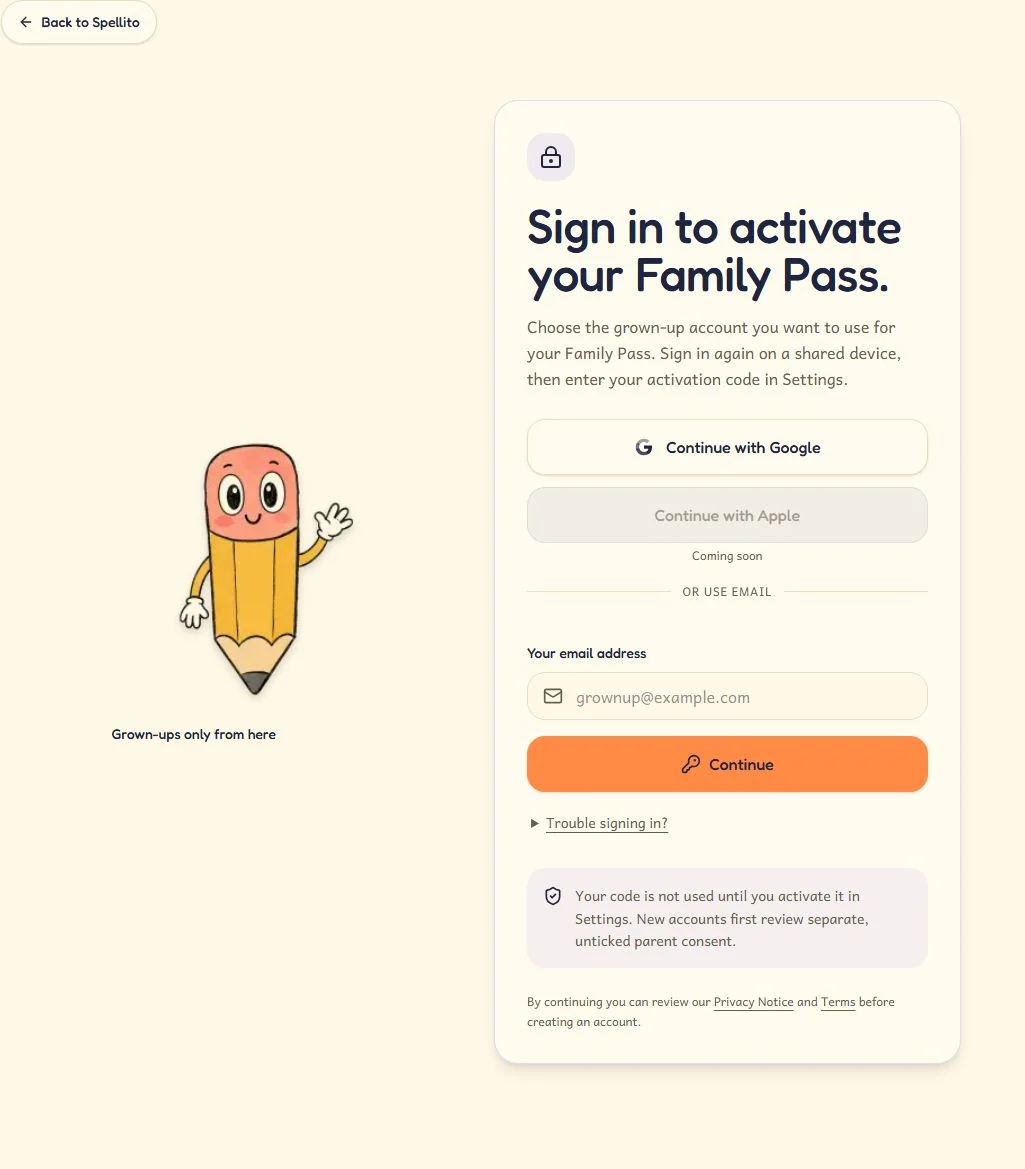
- Open grown-up family sign-in. Enter your own email address in Your email address and choose Continue. Reuse your existing Spellito account. If you normally use Google, choose Continue with Google when shown. On a shared device, check whose account is signed in before continuing.
- Existing users enter their password and choose Sign in. New users choose a password of at least 12 characters, complete Repeat password and choose Create account. Follow the confirmation link sent to your inbox. Use Forgot your password? if needed; do not create another account to recover access.
- New parent accounts have a separate consent screen. Enter Your first name, read the explanation and tick the initially unticked consent box only if you agree. Choose Create my parent account. Signing in alone does not upload a child’s locally saved profile.
- Follow the child-profile step, or open your family page and choose Add a child when available. Use the child’s first name and school year, never a full surname. Reuse an existing profile rather than duplicating it. Choose Save free child profile or Save child profile as shown.
Child profiles belong to the adult account. A free parent account includes one ordinary child profile; Family Pass adds home features and up to five child profiles. For a teacher invitation, follow the parent class-joining guide instead. Class-funded homework does not require Family Pass.
How do I activate a Family Pass code?
Redeeming a code is separate from signing in or installing Spellito. Keep your valid purchase code private and activate it only on the adult account your family will use.
- Open Family Pass in Settings. If signed out, choose Sign in or Create an account. Use the same adult account on your other devices.
- If asked, choose Confirm sign-in and sign in again. Activation requires a recent sign-in; this security prompt does not mean an existing pass has expired. New parents may see Continue as a grown-up to complete consent. You do not need to add a child first.
- Paste the eight-character code from your purchase email into Family activation code, with or without its dash. It is not a sign-in or support code. Choose Activate Family Pass.
- Check for Your Family Pass is active until and the expiry date. The code’s 12 months start on activation. An already active pass does not need another code or payment.
Already paid but missing the email? Check the address used at checkout and its spam folder. If activation or payment status is unclear, contact Spellito support before paying again.

How do teachers get started?
- Open teacher setup and sign in with your own adult account using the email-first steps above. Reuse an existing login; do not share one staff account.
- Enter your Professional display name, such as the name families know you by. Read the separate teacher consent, tick the unticked box if you agree and choose Create my teacher account. Creating this account does not reveal any child.
- Choose the correct official school and check its address. Contact support with your school and Spellito email for the independent school-connection check; do not send pupil names or documents. Wait for School connection verified before inviting families.
- Set up the class label and school year, then choose Create class. You can prepare this while verification is pending. If the class already exists, check with its teacher instead of creating a duplicate.
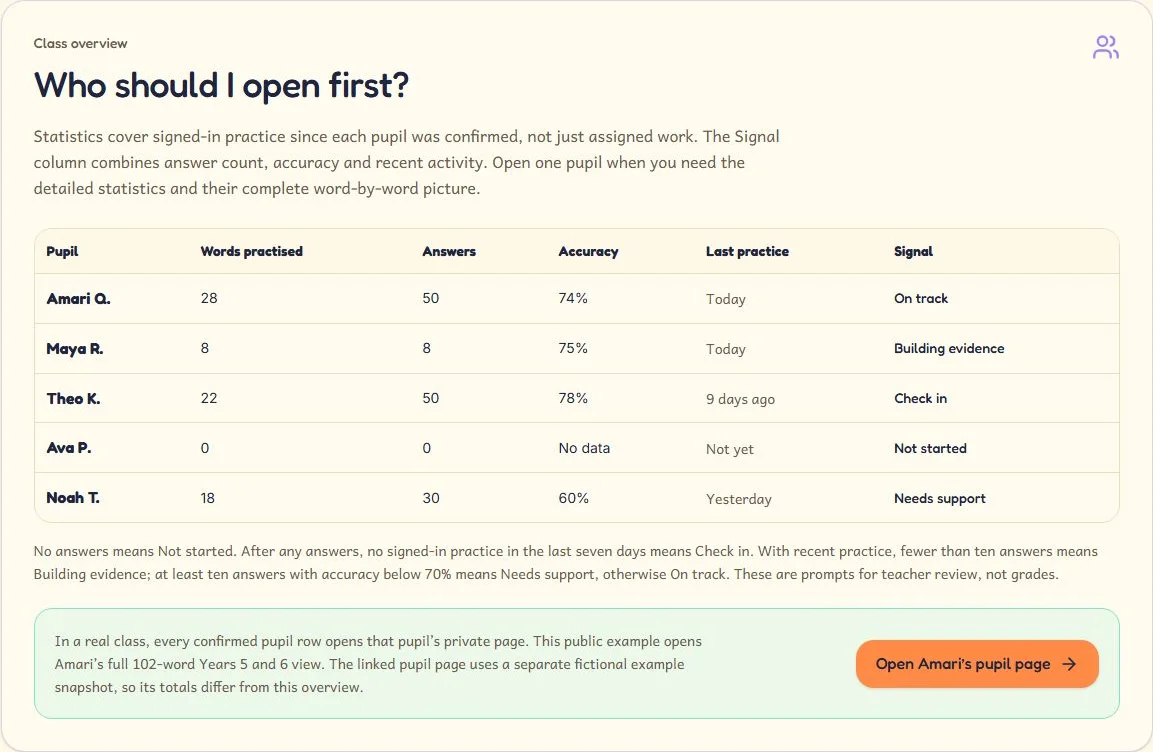
- Once verified, create a private family invitation and review each parent’s request before confirming the child. Sending work and viewing named progress require active class funding; payment does not replace verification or give access to another teacher’s class.
Follow the full teacher class-setup guide for invitations, confirmation and the first spelling set. Family Pass and Class Licence are separate: a Family activation code cannot activate a Class Licence.
How does a whole school join?
- An authorised head teacher, school business manager or colleague should review Spellito School: £1 per pupil per year, with a £99 annual minimum and no automatic renewal.
- Open the whole-school enquiry form. Give your adult contact details, official school name, authorised role and approximate pupil count, then choose Send whole-school enquiry. Do not include pupil lists or private documents.
- Agree the school, authorised contact, invoice and setup arrangements with Spellito. This is an assisted planning route, not automatic account approval or a self-service pupil import. Teacher verification and parent-owned child profiles still apply.
Returning later? Open your Spellito account with the same adult sign-in. Use its sign-out controls when finished on a shared device.
Ready to use Spellito?
Start with free ten-word practice. No child name, account or payment is needed. Choose a paid extra only when it helps your family or school.
Already bought a pass? Open your account or activate your Family Pass code. Use your existing grown-up account; you do not need to buy again to install the app.
For your family
£9/year
Family Pass: home word lists, up to five child profiles, buddies, hints and private progress.
For your class
£59/year
Class Licence: checked weekly lists, assignments and private progress for one class of up to 30 pupils.
For your school
£1/pupil/year
£99 minimum. Ask us about whole-school setup and one annual school payment or invoice.
Paid access lasts 12 months. No automatic renewal. Family and class licences cover different extras.